Mice
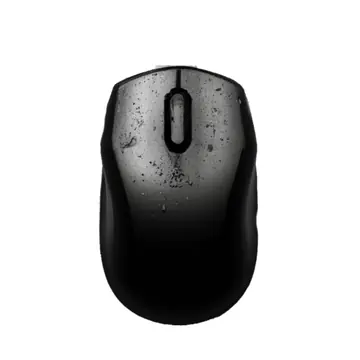
Inception and Evolution of Computer Mouse Technology
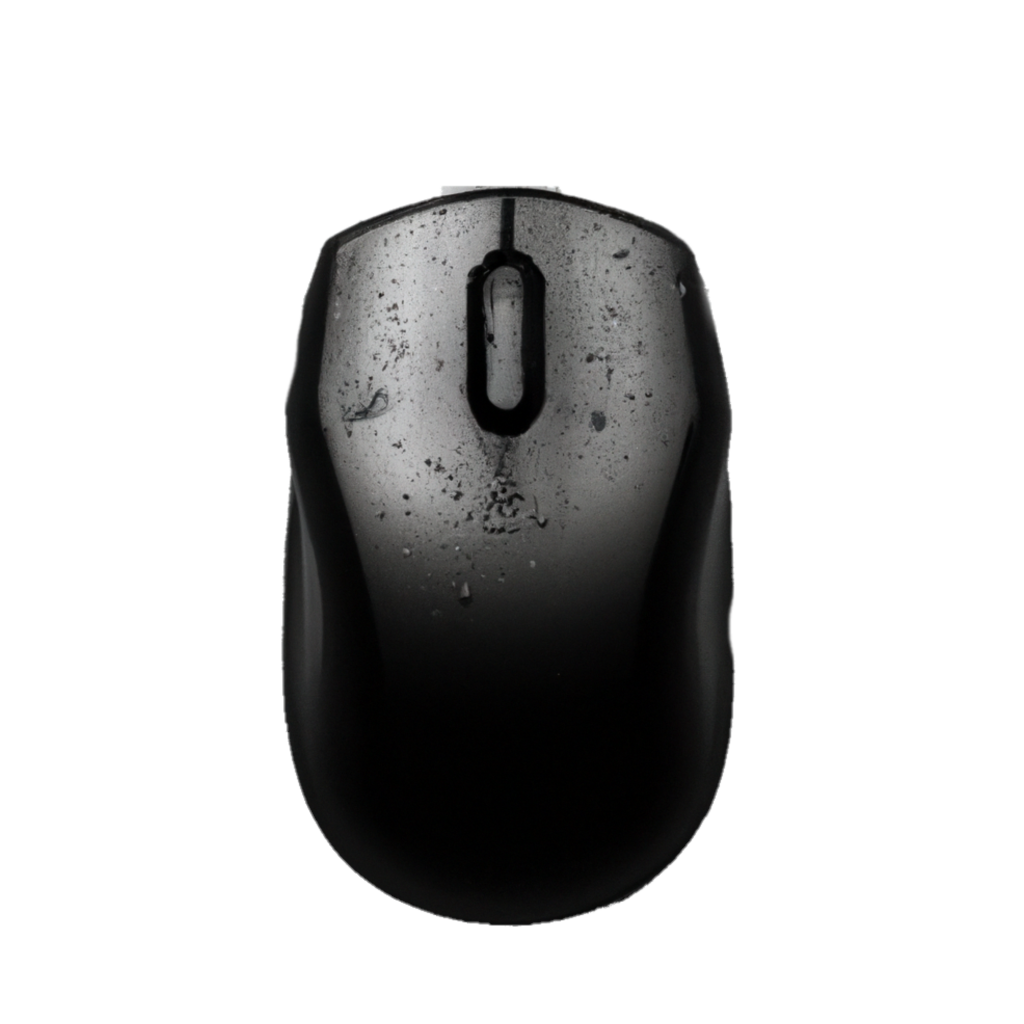
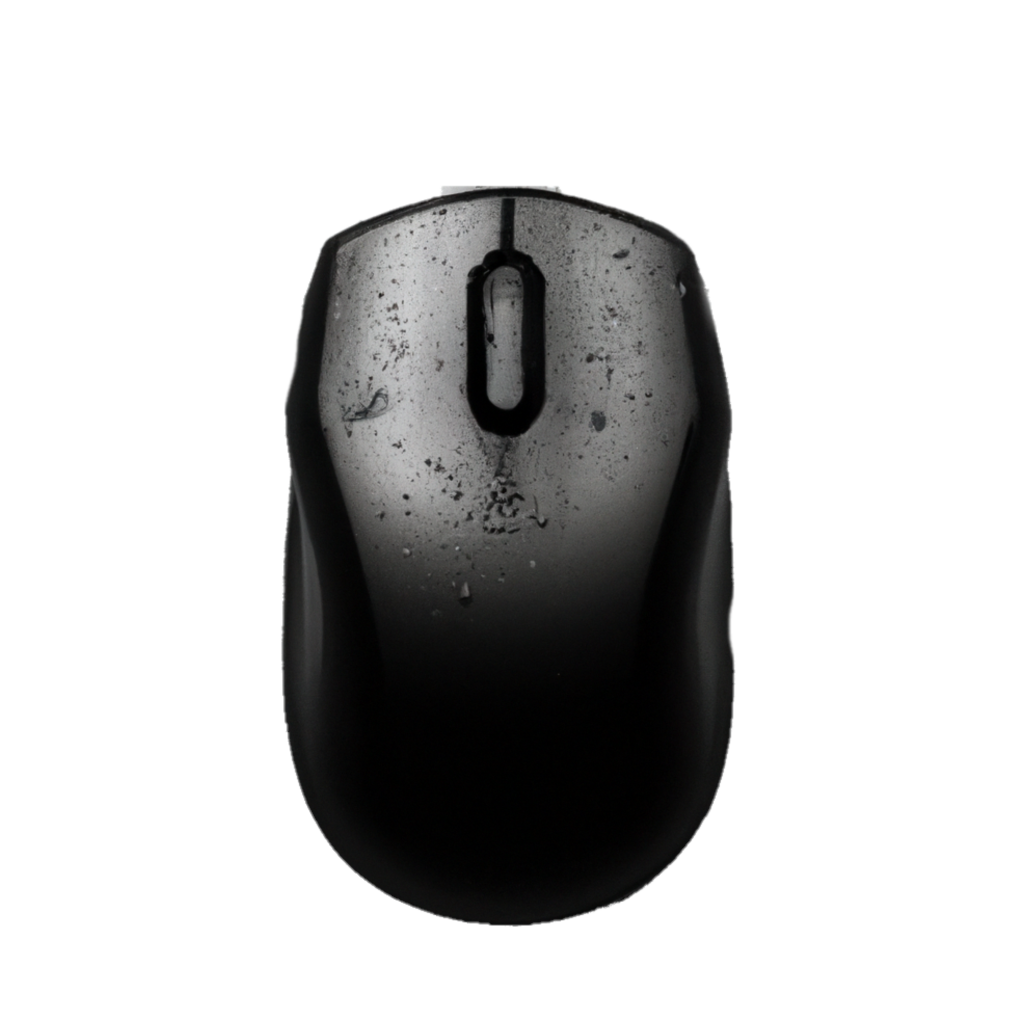
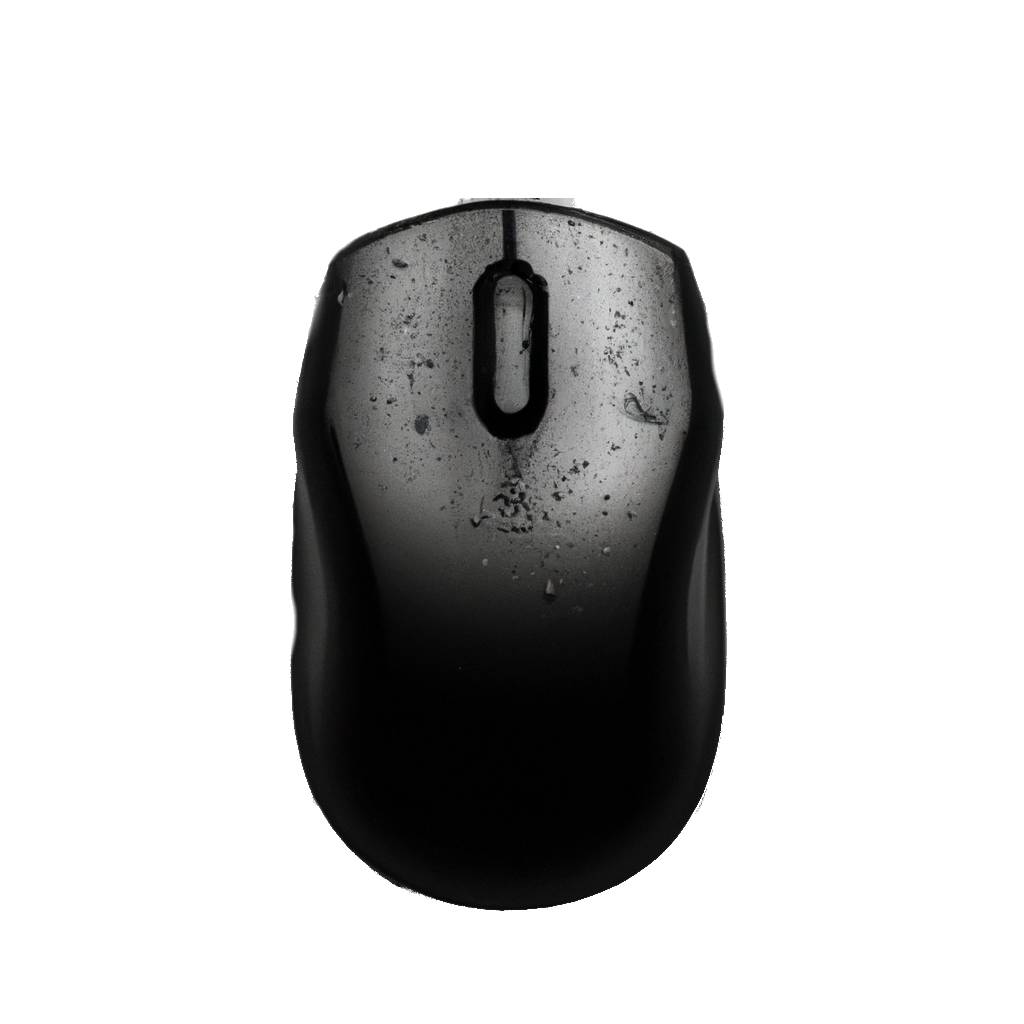
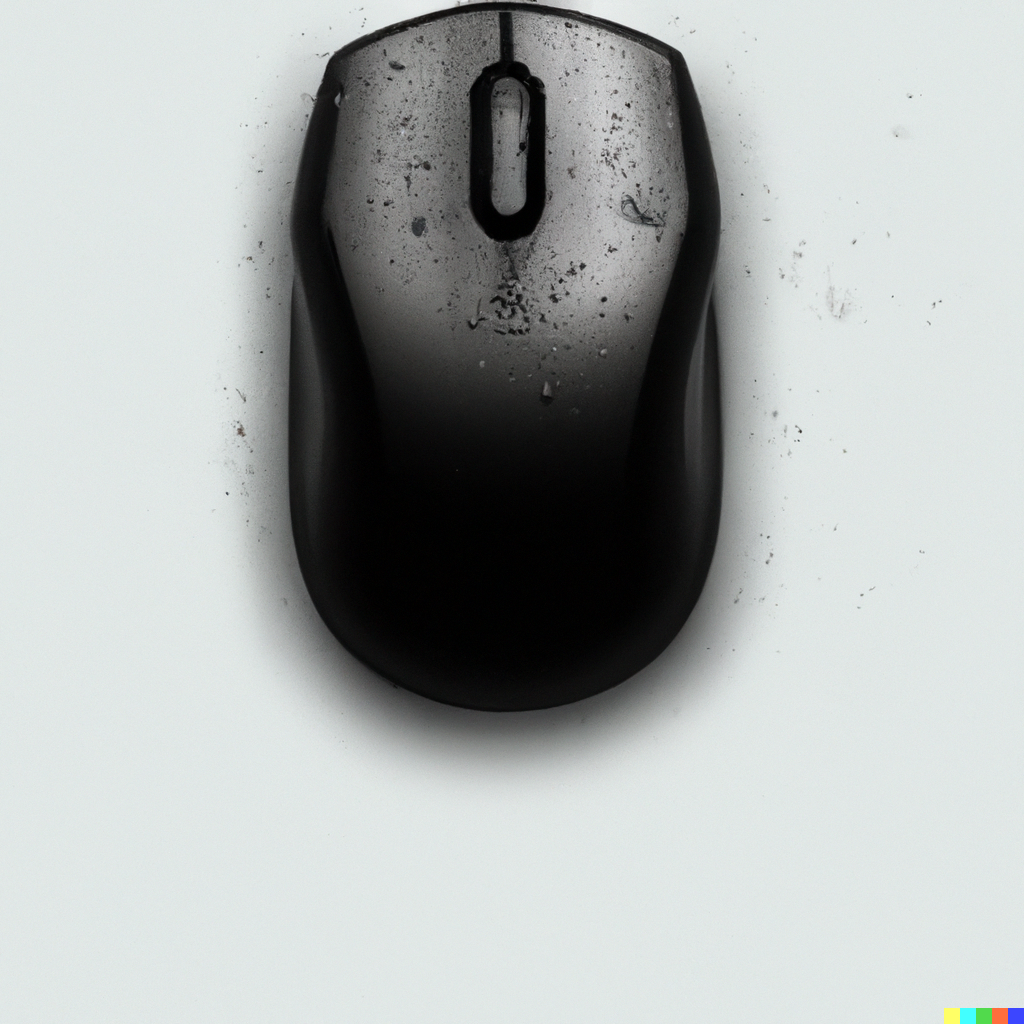
The computer mouse was invented by Douglas Engelbart in 1963, while he was working at the Stanford Research Institute. The original design of the mouse included two perpendicular wheels that could detect the direction of movement. Later, the design was improved to include a ball that rolled on two axes, detecting the direction of movement and transmitting this information to the computer.
In the 1980s, the mouse became a popular peripheral for personal computers, particularly with the rise of the graphical user interface (GUI) and the introduction of the Apple Macintosh computer. Over time, the mouse has continued to evolve, with new designs and features that make it more ergonomic and easier to use.
In the early 2000s, the mouse began to see competition from other input devices such as touchscreens, trackpads, and styluses. However, the mouse remains a popular and essential tool for many computer users, particularly for tasks that require precision and accuracy.
Future of Computer Mouse Technology
The future of computer mouse technology is likely to continue its evolution towards more ergonomic designs and more advanced features. Some current trends in mouse design include the use of wireless connectivity and improved sensors for greater accuracy.
In addition, there is ongoing research into new input technologies that could eventually replace the mouse altogether. For example, there are prototypes for devices that use eye-tracking or brain-computer interfaces to control a computer. However, these technologies are still in the early stages of development and are not yet widely available.
Overall, it is likely that the computer mouse will continue to be an important tool for computer users for the foreseeable future, even as new input technologies emerge.
About the Mouse
The computer mouse is a versatile input device that is used for a wide range of applications. Some of the most common use cases and applications for a computer mouse include:
-
Pointing and clicking: The primary use of the mouse is to move the cursor on the screen and click on icons, links, buttons, and other graphical elements.
-
Scrolling: The mouse wheel allows you to scroll up and down on a webpage, document, or other content.
-
Drag and drop: The mouse can be used to select and drag files, folders, and other objects, and drop them into new locations.
-
Navigation: In addition to pointing and clicking, the mouse can be used to navigate through menus, toolbars, and other user interface elements.
-
Drawing and design: The mouse is a popular tool for graphic designers, artists, and other professionals who need to create and edit digital artwork.
-
Gaming: The mouse is a critical input device for PC gaming, allowing players to move and control characters, objects, and weapons in video games.
-
Accessibility: For individuals with certain disabilities or mobility impairments, the mouse can be an important assistive technology that allows them to interact with a computer and access digital content.
-
Productivity: The mouse can be used to increase productivity by allowing users to perform tasks quickly and efficiently, such as copying and pasting text, resizing windows, and switching between applications.
-
3D modeling: In addition to drawing and design, the mouse is also used in 3D modeling applications to control the movement and rotation of objects in a virtual space.
These are just some of the most common use cases and applications for a computer mouse. As technology evolves, the mouse is likely to continue to be an important input device for a wide range of tasks and industries.
Trends
The computer mouse has been a popular input device for several decades, but as technology continues to evolve, there are some trends that suggest that its dominance may be challenged in the future. Here are a few potential scenarios for the future of the mouse:
-
Gesture-based input: One possible future for input devices is the use of gestures, such as hand and finger movements, to control computer interfaces. This could be accomplished with cameras, sensors, or other technologies that can detect and interpret gestures in real-time. While this type of input is still in its early stages, it has the potential to provide more natural and intuitive interaction than traditional mouse and keyboard input.
-
Touchscreens: Touchscreens are already a popular input method for mobile devices and some laptops, and they could become more widespread in desktop computing as well. With the increasing availability of large, high-resolution touchscreens, users may be able to interact with their computers through touch gestures rather than a mouse.
-
Voice and AI-based interfaces: Another potential future for input devices is the use of voice commands and artificial intelligence (AI) to control computer interfaces. With the development of natural language processing and machine learning technologies, users may be able to interact with their computers through voice commands and have their requests interpreted and executed by AI assistants.
-
Augmented and virtual reality: As augmented and virtual reality technologies continue to develop, they may offer new ways of interacting with digital content beyond the traditional mouse and keyboard. For example, users may be able to use hand gestures or other movements to manipulate virtual objects in 3D space.